Your Project Files.. Secure and Organized in One Place
Upload files and documents in a secure virus-protected space, and share them with your team in one click.
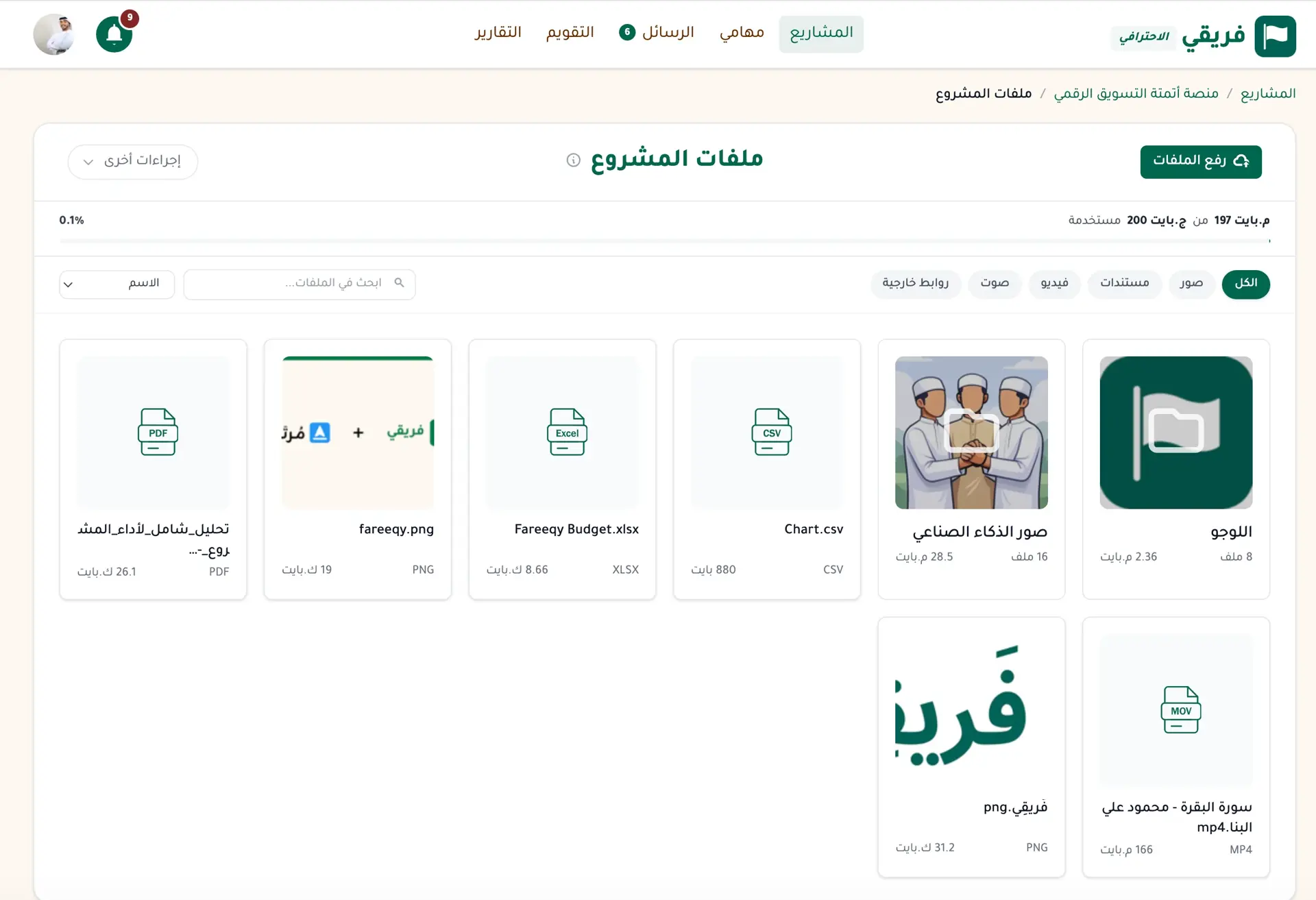
Project files scattered across cloud drives, email, and chat threads? Every time you need one, you lose time searching. Worse, you may end up working from an outdated version without realizing it.
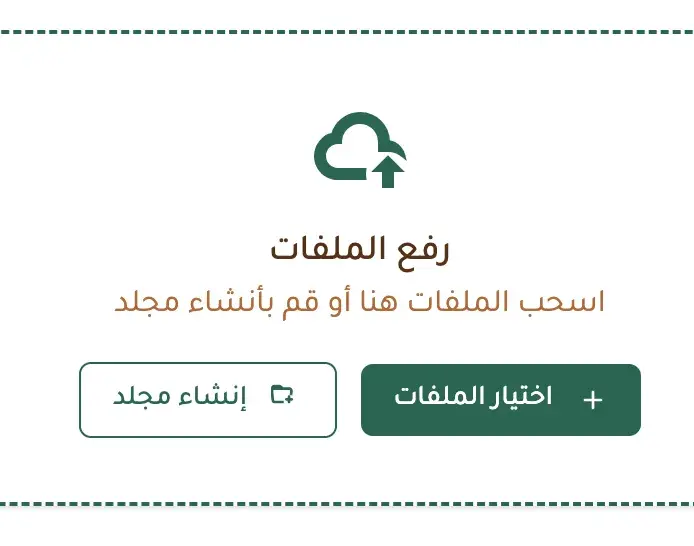
Fareeqy gives every project a centralized, secure file space. Upload a file in one click, and preview PDFs, images, video, and audio without downloading them. It supports the file types your work depends on, including PDF, Word, Excel, PowerPoint, images, video, audio, design files, and ZIP or RAR archives. Every uploaded file up to 500MB is automatically scanned for viruses before it becomes available to project members.
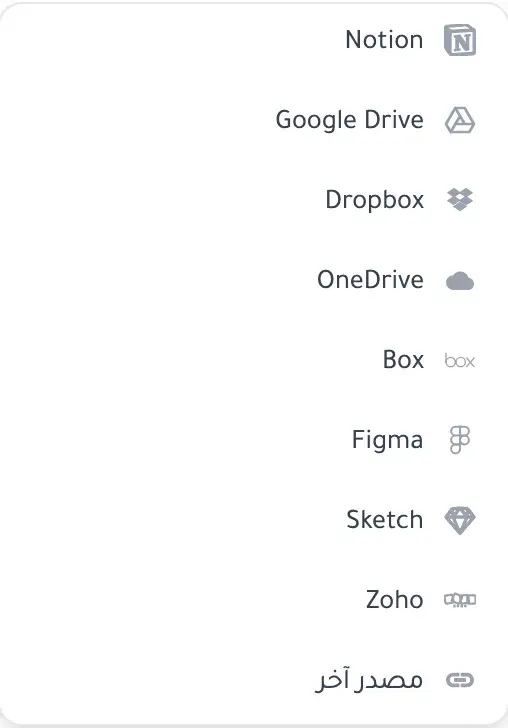
Already keeping files elsewhere? Link them directly inside Fareeqy from Google Drive, Dropbox, OneDrive, Notion, Box, Figma, Sketch, Zoho, or any other source. The links stay organized with the project, so your team knows where to find the right file without moving it.
Handling several files is just as direct. Select them together to download a single ZIP or move them into a folder in one step. Drag any file onto a folder to organize it, or rename it from the actions menu without opening it.
Folders now work like files throughout the file screen. Download any folder as one ZIP and receive its entire tree, including every subfolder in the right place rather than a loose pile of files. Move a folder into another by dropping it on top or using its actions menu, with no need to recreate the structure and move the contents manually. In selection mode, choose folders alongside files, then download, move, or delete everything you selected in one action.
When a client asks for a file or folder, you do not need to send a new copy every time. Nothing becomes public until you turn on the link for that specific record. The visitor opens a read-only page without a Fareeqy account and can preview the file or browse the entire folder tree. The "Allow file download" switch decides whether they can keep a copy, and your choice applies to the whole folder tree. The link panel shows how many times it was opened, and you can stop sharing whenever you want. If you publish it again, the same link starts working again.
The result? A project file tree that stays intact and works the way you expect. Uploaded files and external links remain easy to find, while whole folders move or download without opening them one by one.
Key Benefits
Related Features
Comments & Discussions
Discuss directly on tasks instead of scattered messages. Every conversation stays linked to its task for easy reference.
Project Management
Every project is a complete workspace for your team: tasks, files, conversations, decisions, and an automatic timeline of every action grouped by day. Color-coded departments group the company's projects by type of work.
Team Management
Invite your team in one click, set roles and permissions, and collaborate seamlessly in an organized and secure workspace.
Custom Roles & Permissions
Built-in roles do not always match how your team works. Create a role in your team's language, scope exactly what it can see and do, then assign it wherever it is needed.
Related Articles
Frequently Asked Questions
Which file types does Fareeqy support, and how are uploads protected?
Can I link an external file without uploading it to Fareeqy?
Can I download an entire folder as a ZIP?
How do I move folders or include them in bulk actions?
Can I prevent a shared file from being downloaded?
What happens when I stop sharing?
Start your first project in 60 seconds
Try Fareeqy for free and start organizing your work with your team
Start Your Free Trial✓ Free Forever • ✓ No Credit Card Required