Why Fareeqy Isn't on Google Play or the App Store
Fareeqy runs as a full mobile app without an app store. Install it from your browser on Android, iPhone, iPad, Windows, or Mac.
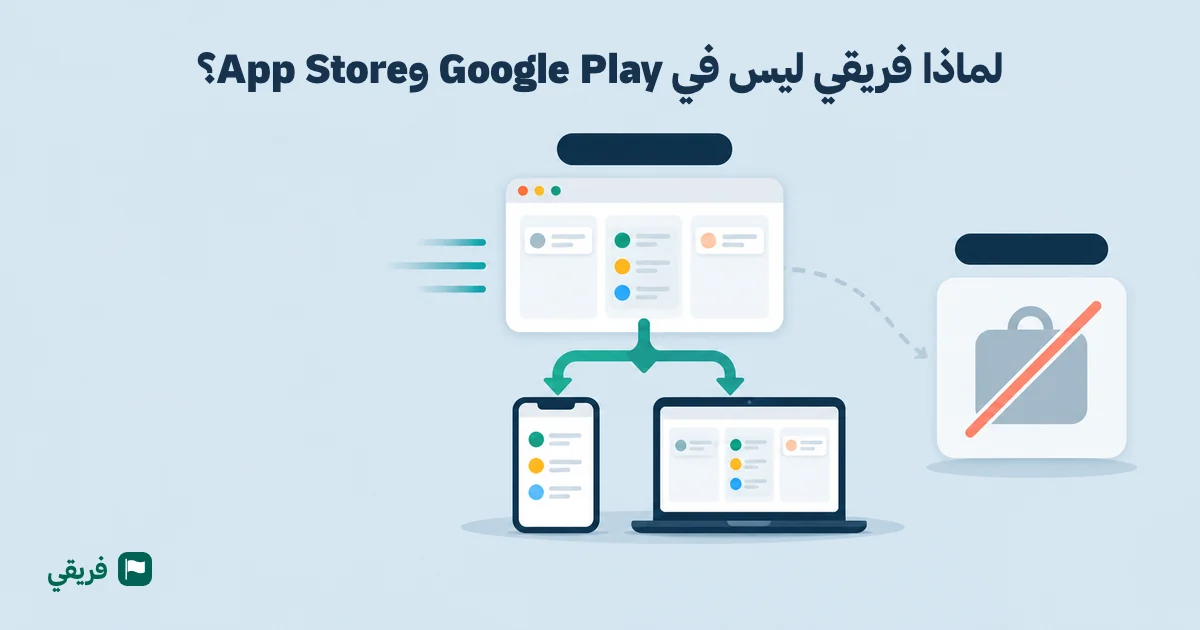
You open the app store. You type “Fareeqy.” The results appear, but none of them is Fareeqy. You try another spelling. Still nothing. So you close the store and reach the obvious conclusion: Fareeqy must be for desktop only.
That conclusion makes sense. It is also wrong.
The short answer: Fareeqy is already a mobile app
Fareeqy runs as a full app on your phone. You install it directly from your browser, then open it from the same kind of icon you expect from any other app. No store is involved.
On iPhone and iPad, you install it from Safari. On Android, you install it from Chrome. The same approach also works on Windows and Mac.
This is not a workaround. It is not a temporary version of a “real” app. It is a deliberate choice made in your favour.
The real comparison is not where the icon lives. It is how fast an update reaches the person using it.
A store icon and a browser-installed icon do the same job: you tap, Fareeqy opens. The difference is what happens behind that icon. You can see the full overview for installing Fareeqy on your devices, or keep reading for the practical steps.
1. Your updates arrive when they are ready
You find a problem. The team fixes it. Yet with a traditional store app, days can pass between shipping that fix and getting it onto your phone. Store review and distribution sit between the release and your device.
That delay hurts most when the change is small but urgent. The fix exists, yet you are still using the version from before it.
Fareeqy removes that gap. When a fix or improvement ships, it reaches you directly. There is no store review between the release and your device, and no new package for you to find and download.
When an update is available, Fareeqy shows a bottom bar saying “A newer version of Fareeqy is ready.” You can choose “Reload page” or “Later,” and if you pick later, the new version opens on its own next time. The service worker activates the new version, takes control, and clears the old cache.
You spend less time waiting for a corrected version and more time using it. A shipped fix becomes a fix you can actually reach.
2. You do not carry an old version for months
You have seen the update button before. You meant to tap it later. Then later became next week.
Maybe automatic updates were disabled to save space. Maybe several apps were waiting. Maybe the update simply disappeared among everything else on your phone. Months later, you report a bug that the product team fixed long ago.
That is the hidden cost of making every user responsible for version management. Different people end up using different versions. Support conversations start with diagnosis before anyone can address the real problem.
Fareeqy gives everyone the same current experience. There is no old store package sitting on your phone and no forgotten download waiting in a queue. The browser-installed app receives the released version directly.
You no longer need to ask, “Which version am I using?” Your colleague does not see different behaviour because one of you remembered an update and the other did not.
The outcome is simple: when you discuss a screen, a fix, or an improvement, your team and Fareeqy support are discussing the same product.
3. The app does not grow with every download
Your phone warns you that storage is nearly full. You check the list and find apps that started small but grew through repeated updates. The least essential one becomes the first thing you delete.
A store app downloads a package when you install it. Future versions bring more downloads. Over time, that storage footprint can grow until keeping the app becomes a decision of its own.
Fareeqy works differently. The installed app is a shortcut to the website itself, not a large package stored on your phone. It does not consume hundreds of megabytes or require another full app download every time something changes.
You still get a home-screen icon. You still tap it to open Fareeqy. You simply avoid carrying a growing application package behind it.
The outcome? Fareeqy stays available without competing for the kind of storage that makes you choose between a work tool, your photos, and the other apps you need.
4. You get one experience on every screen
You open a feature on your computer, then reach for your phone and discover it is missing. Or the mobile app uses different labels, different navigation, and a different release schedule. You spend time learning which version can do what.
That split is common when the web product and mobile app are developed separately. A feature reaches one interface before the other. The two experiences slowly drift apart.
Fareeqy uses one interface across Android, iPhone, iPad, Windows, and Mac. Your account and data are the same on mobile and computer. There is no separate synchronization step and no second mobile product waiting to catch up.
The working philosophy stays consistent too: every task has one owner, one deadline, and one priority. You do not need to reinterpret your work because you changed screens.
This matters when you are comparing the best Arabic project management tools or reviewing Fareeqy compared with Trello, Asana, and Monday. Mobile access is not just about whether an icon exists. It is about whether the experience behind that icon stays consistent.
The outcome is one account, one set of data, and one way to work wherever you open Fareeqy.
The comparison in one view
You should not have to translate a technical decision into practical consequences. Here is what changes for you:
| App from the store | Installed from the browser | |
|---|---|---|
| Update delivery | A fix can spend days in review and distribution before it reaches you. | A fix reaches you when it ships, with no store in between. |
| Who decides to update | You install the update, rely on automatic updates, or remain on an older version. | There is no old store package to maintain. Fareeqy delivers the current released experience directly. |
| Storage | The app downloads as a package, downloads again with updates, and can grow over time. | The icon is a shortcut to Fareeqy itself, not a package consuming hundreds of megabytes. |
| One experience across devices | Mobile and web versions can follow separate release schedules. | The same Fareeqy interface runs across phone, tablet, and computer. |
| Notifications | Native notifications depend on the app and its settings. | Real Web Push notifications can arrive while Fareeqy is closed and open the relevant page when tapped. On iPhone, Fareeqy must be installed from Safari and opened from the home screen. |
| Working without a connection | Some store apps support work without a connection. It depends on the app. | Fareeqy shows a saved day sheet with your tasks, upcoming meetings, and prayer times when the connection drops. It is read-only: you cannot change work or queue anything to send later. |
What you give up
This approach has tradeoffs. Hiding them would make the rest of the argument weaker.
It is less familiar. Most people learned that an app comes from a store. Installing one from the browser is unusual, even though the step itself is simple. That unfamiliar moment is exactly why this article exists.
Once the icon is on your home screen, the unusual part is over. You tap it and open Fareeqy as you would any other app.
iPhone users have an extra step. You must install Fareeqy from Safari specifically, then open it from the home screen. If you continue opening Fareeqy inside Safari, mobile notifications will not work.
This is an Apple constraint that applies to all web apps, not a Fareeqy restriction. Following the installation step gives Fareeqy the conditions required to deliver instant notifications. Those notifications can arrive while the app is closed, and tapping one opens the relevant page directly.
You keep a day sheet, but working still requires a connection. When your connection drops, Offline Mode shows your saved tasks, upcoming meetings, and prayer times. You can read them, but you cannot create, edit, complete, comment, upload, or queue anything until you are back online.
You know exactly what to expect. No vague promise. No buried condition.
How to install Fareeqy
The store search led nowhere because the browser is the installation path. Choose your device below, follow the short instruction, and the Fareeqy icon will be ready from your usual app screen.
iPhone or iPad
Open Fareeqy in Safari. Tap the Share button, then choose Add to Home Screen.
After installation, open Fareeqy from its home-screen icon. This final detail matters: notifications on iOS work only when Fareeqy was installed from Safari and is opened from the home screen.
Android
Open Fareeqy in Chrome. Tap the 3-dot menu, then choose Add to Home screen.
Fareeqy also shows an Install Fareeqy banner automatically within seconds after you log in. Use either route, then open the app from its new icon.
Windows
Open Fareeqy in Chrome or Edge. Select the install icon in the address bar.
If you do not use that icon, open the 3-dot menu and choose Install as app. Fareeqy will then be available like your other installed applications.
Mac
Open Fareeqy in Safari. From the menu bar, choose File, then Add to Dock.
That gives you direct access from your Mac without searching through browser tabs.
If you prefer screenshots, follow the illustrated install steps in the help center. You can also visit the common questions when you need a quick answer about using Fareeqy.
The icon is not the point
The result? You get the Fareeqy icon on Android, iPhone, iPad, Windows, or Mac, but you do not wait for store reviews, manage old versions, repeat large downloads, or switch between mismatched mobile and web experiences. Your account and data stay together, notifications reach you even when the app is closed, and improvements arrive when they ship. Create your Fareeqy account, then install it from the browser on whichever device you are holding right now.